

Pulse Controller
As with all modern devices, periodic software updates are issued to enhance functionality and add new features. Pulse controller updates can be automatically downloaded and installed via Wi-Fi or manually installed via a USB flash drive.Online updating via Wi-Fi
To update via the Internet, navigate to the Settings screen on the controller. Select Update from Internet followed by the Check for updates button.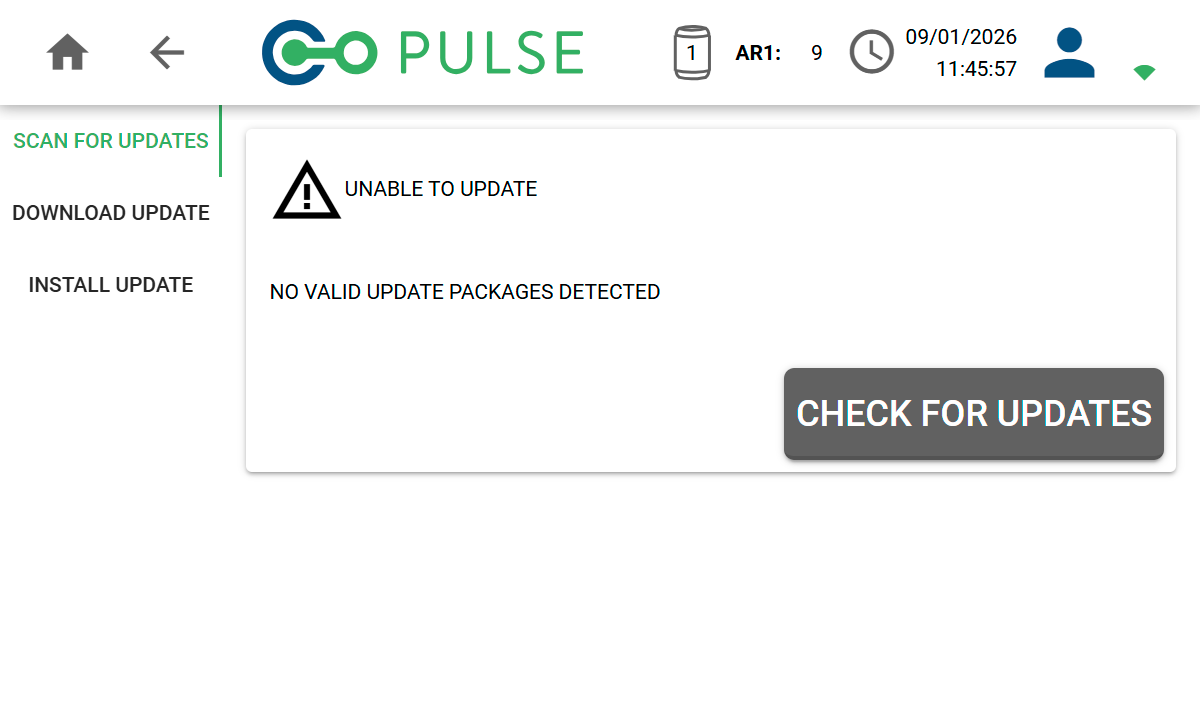 The controller will check if a software update is available that is newer than the version of software already installed on the controller.
[SCREENSHOTS OF CHECK PROCESS]
If a new version of the software is available, you will be able to download and install it.
The controller will require a power cycle after the software has been successfully installed.
[SCREENSHOTS OF INSTALL PROCESS]
The controller will check if a software update is available that is newer than the version of software already installed on the controller.
[SCREENSHOTS OF CHECK PROCESS]
If a new version of the software is available, you will be able to download and install it.
The controller will require a power cycle after the software has been successfully installed.
[SCREENSHOTS OF INSTALL PROCESS]
Online software updates require an active Wi-Fi connection with access to the Internet.Navigate to the Wi-Fi Settings screen if an connection has not yet been established.
Manually updating via USB flash drive
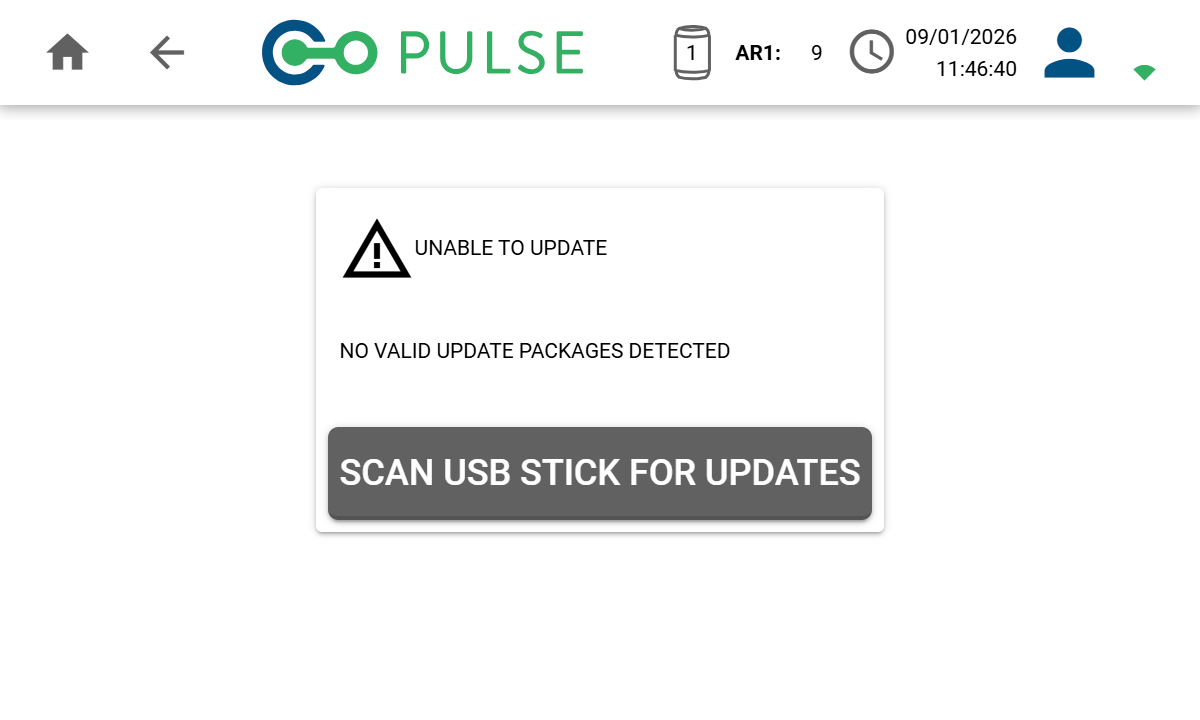
Air Receiver
The latest air receiver firmware version that is available is always incorporated into new controller software packages. After performing a controller software update, you can navigate to the System status screen to check if any new firmware updates are available for each of the connected air receivers.Updating the air receiver firmware
When an air receiver firmware update is available, the System status screen will show a message saying “Please update the air receiver firmware”. A Download button will also appear against each air receiver that is eligible for an update (circled in red).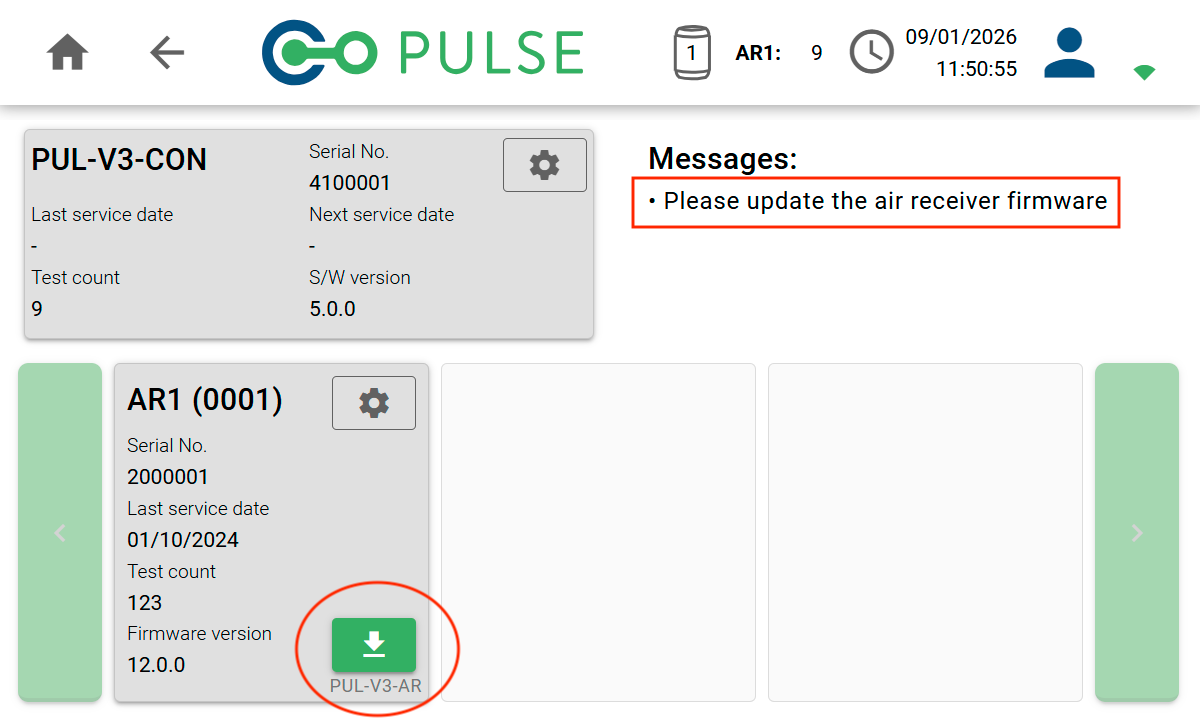 Clicking the Download button will install the latest firmware on to the air receiver.